📚 How to Assign Training and Manage Learning Programs
| Training content like courses, exams, and checklists is assigned by adding it to a learning program and then assigning that program to learners. This guide covers how to assign training, understand dashboard status indicators, and manage learning program assignments including reassignment and history management options. |
🔍 Navigate this article: |
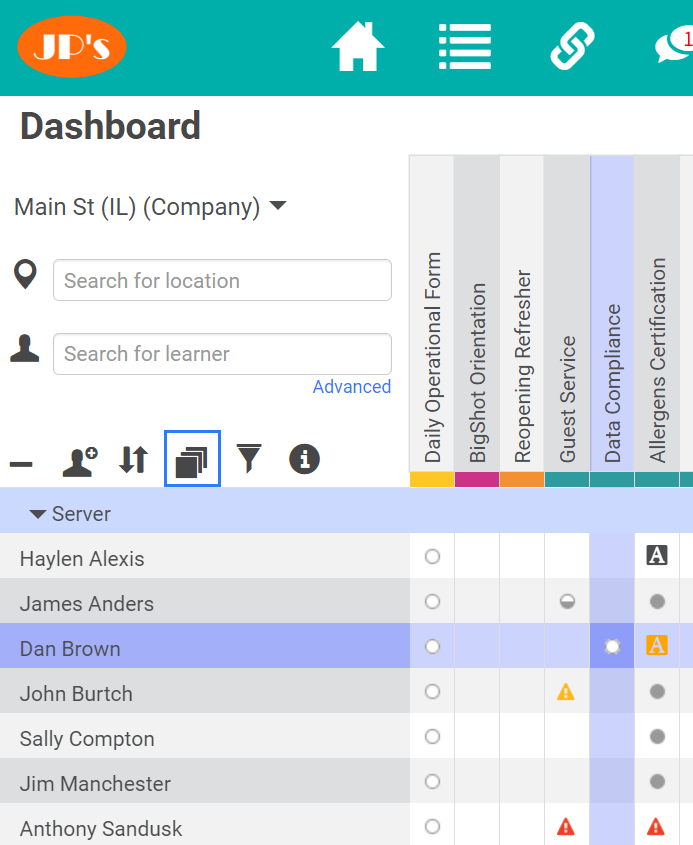
How to Assign Training
Path: Campus Home Dashboard
|
 |
Dashboard Status Indicators
The dashboard displays 19 different dots and icons that indicate the status of training assignments:
| Icon | Status | Icon | Status |
 |
Assigned |  |
Remote entry available |
 |
Assigned, prerequisite required |  |
Remote entry available, due soon |
 |
In progress |  |
Remote entry available, late |
 |
Completed |  |
Remote sign off available |
 |
Due soon |  |
Remote sign off available, due soon |
 |
Overdue |  |
Remote sign off available, late |
 |
Recurring |  |
Manager review assigned |
 |
Wait time in effect |  |
Manager review late |
 |
Self-review assigned |  |
Review scheduled, not assigned |
 |
Self-review late |
Reviewing Training Assignments
Click any dot or icon on the dashboard grid to view detailed information about that specific assignment:
|
Assignment Details Available:
|
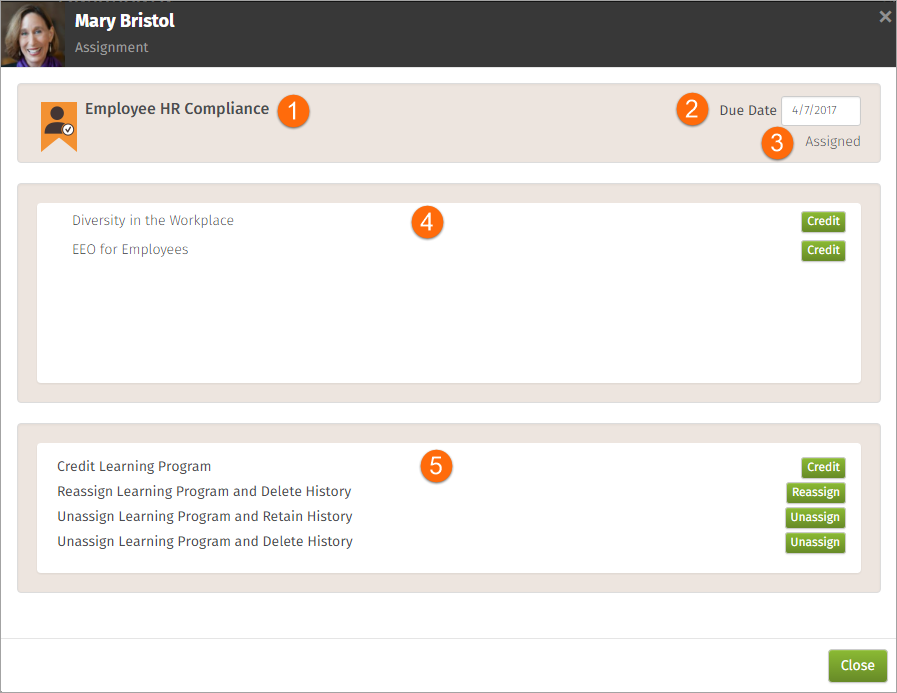 |
Available Program-Wide Actions:
- Credit the entire learning program all at once
- Reassign the entire learning program and delete any history
- Unassign the entire learning program and retain the history
- Unassign the entire learning program and delete any history
Unassigning and Reassigning Learning Programs
The assignment status popup offers three main options for managing learning program assignments:
Reassign Learning Program and Delete History |
Deletes any history of the learning program having been assigned, started, or completed, then reassigns it fresh. An in-progress or completed program becomes a newly assigned program (open circle). |
Unassign Learning Program and Delete History |
For Unique Content: If the LP includes content that only exists in that specific LP, both the LP assignment and completed content assignments are deleted. When reassigned, the content appears as not started (open circle). For Shared Content: If the LP includes content that also exists in other LPs, the deletion behavior is the same - the LP assignment and its content assignments are removed. However, when reassigned, learners automatically retain credit for shared content previously completed through another LP. This occurs because the system recognizes completion from the other LP assignment, not because deleted completions are retained. |
Unassign Learning Program and Retain History |
All instances of the learning program assignment are retained, maintaining the learner's history like a school transcript. This preserves all completion records and progress. |
Best Practices for History Management
Use Delete History sparingly, as it permanently clears LP assignments and completions. Choose this option only when you need a complete reset, such as correcting an incorrect assignment or testing scenarios.
For most situations, Retain History is the safer option to preserve learner progress and maintain accurate training records.
| Option | Best Used For | Impact on Records |
| Retain History | Standard reassignments, temporary removal, compliance requirements | Preserves all completion records and training history |
| Delete History | Correcting errors, testing scenarios, complete program resets | Permanently removes all assignment and completion records |
Comments
0 comments
Please sign in to leave a comment.