Add, Change, or Delete a Learning Program
Learning programs are groups of courses and other content items that are related by subject matter, role, or skill position.
Path to add a learning program: Campus Home > Content > Manage Content > +Learning Program
Path to change or delete a learning program: Campus Home > Content > Manage Content > click the name of the learning program
Learning Program Log
A log of changes made to an existing Learning Program can be viewed by clicking the log icon, (clipboard) at the top of the Learning Program settings.
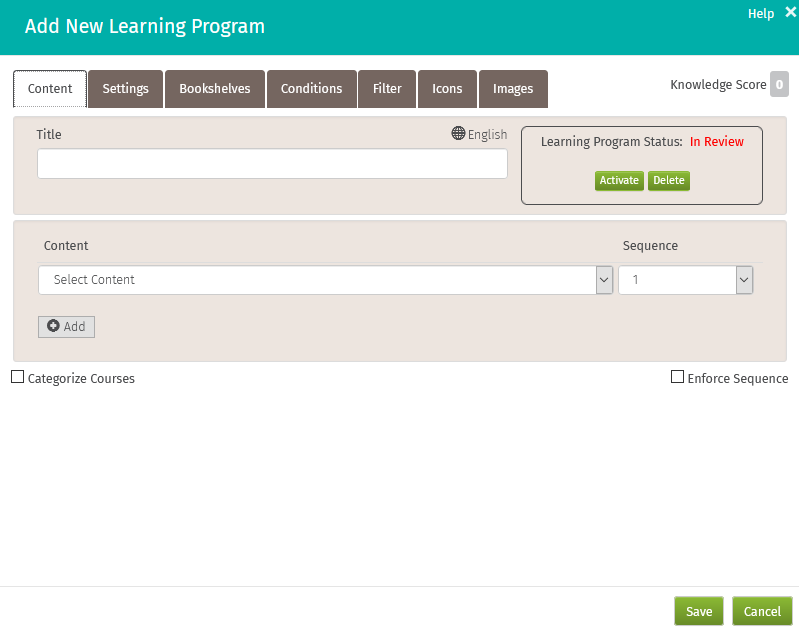
Content Tab
- Title: Enter a title for your learning program
- Learning Program Status: A new learning programs is In Review by default, click Activate when you are ready for
- Knowledge Score: A read-only field showing the sum of the knowledge scores for all the item in the learning program
-
Content: From the dropdown, select a content item to include in the learning program, click Add to add one or more additional items.
- NOTE: Wait Time content items cannot be last item in sequence for the LP.
- Sequence: Use the Sequence dropdown to establish the order in which the items in the learning program should be taken, multiple courses can be assigned a single sequence number allowing the learner to take that subgroup of courses in any order
- Enforce Sequence: Optionally check the Enforce Sequence box to force learners to take courses in the order indicated
-
Categorize Courses: Group the content items in the learning program into categories to show interrelationships, categories display on the learners' My Training page
Related Topics
Settings Tab
- Knowledge Score: The combined knowledge score of the courses in the learning program (cannot be edited)
- Pre-requisite Learning Programs: Check the box next to a learning program to require it be completed before any courses in your new learning program can be taken
- Associated Learning Programs: Select associated learning programs that will be automatically assigned when you assign this new learning program
- Auto Assign to: Indicate the skill positions for which this learning program will be automatically assigned
- Allowed for: Choose to make the learning program available for all roles or only for a selected role
- Certificate: Optionally select a certificate to award upon completion of the learning program
- Due: Indicate the number of days (from assignment) in which the learning program will be due
Repeat:
Select how often the learning program should recur after completion. The recurrence schedule is determined by the completion date of the last content item completed within the program.
If you change the Repeat cycle on an existing learning program that is already in use, all current assignments will be updated to follow the new repeat settings.
- For example, if you change the Learning Program repeat cycle from 2 years to 1 year, all assignments—including those already marked as completed—will be updated to a 1-year recurrence, based on each learner’s most recent completion date.
- For Date-specific recurrence, when you are changing the Repeat cycle on an existing learning program currently in use, you should make the date at least 3 days in the future of your change if your goal is to make everyone recur, and first test it on your Sandbox site to understand the behavior for those who already have a completion of it or are still assigned (open or half-filled circle on the dashboard)
- Note that anyone who has not completed the learning program, or who has partially completed it, will not be reassigned the LP with the new specific date until they complete their current assignment of it. It will then be due again for them on that specific date, at the interval you chose (every 1 - 5 years)
- You can choose to ignore reassignment for those who have recently completed the learning program with the number of days of your choosing
- For Date-specific recurrence, when you are changing the Repeat cycle on an existing learning program currently in use, you should make the date at least 3 days in the future of your change if your goal is to make everyone recur, and first test it on your Sandbox site to understand the behavior for those who already have a completion of it or are still assigned (open or half-filled circle on the dashboard)
- Disable Give Credit: Choose this option to make it impossible to give credit for this learning program or any content in this learning program
-
If started, this Learning Program cannot be unassigned: Check if desired. Note: if no content therein has been started, it CAN be unassigned. Useful for accidental dashboard assignment. This feature can be turned on or off on a campus-wide basis.
Bookshelves Tab
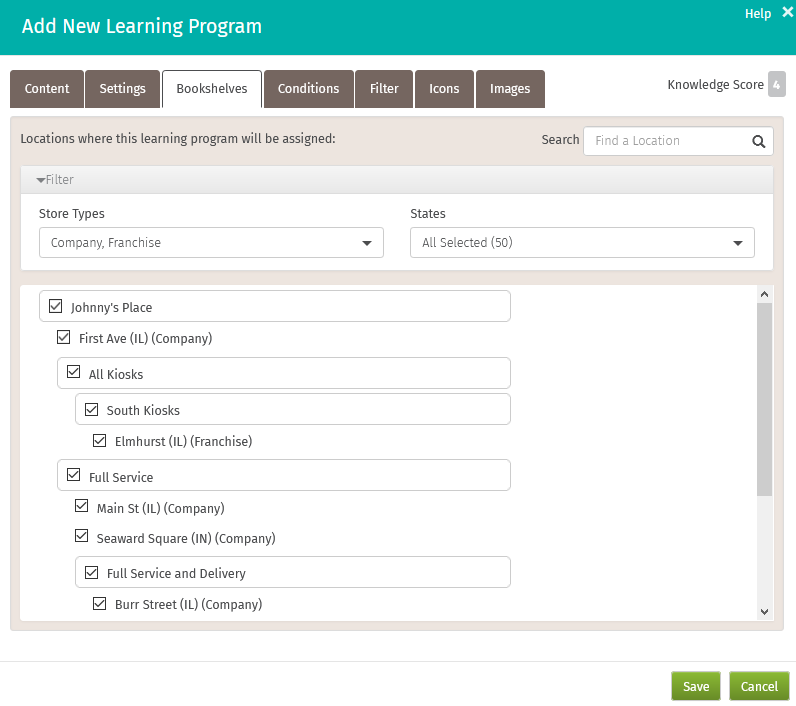
Use bookshelves to define the locations where a learning program is available for assignment.
- Store Types: Choose to limit the availability of a learning program to specific store types
- States: Choose to limit the availability of a learning program to specific states
- Find: Find a specific location in the display
-
Hierarchy display: Use the hierarchy display to customize your selections
Conditions Tab
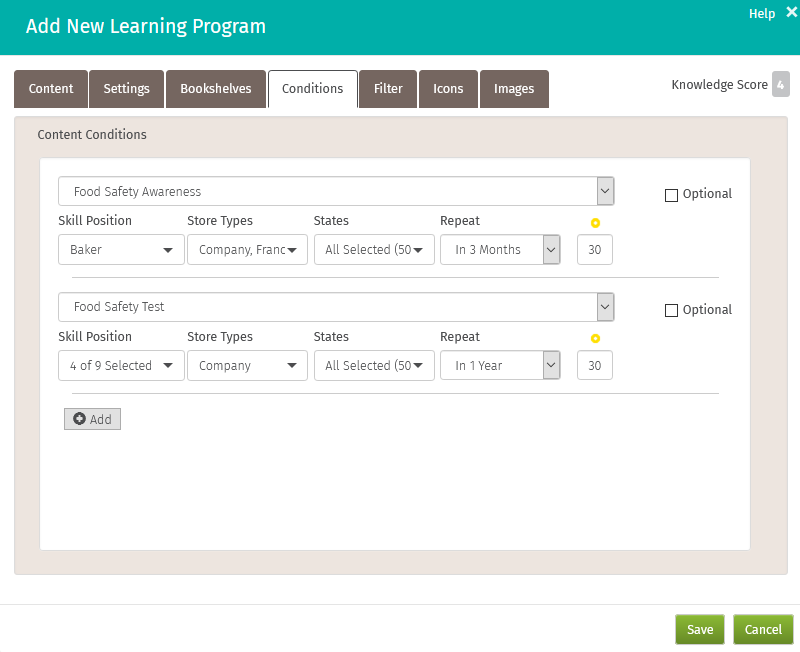
Conditions apply to individual content items in a learning program, and they allow you to define precisely who a content item is assigned to and how often the item should be repeated.
-
Select Content: Choose the item you want to set conditions for
- NOTE: Wait Time content items cannot be last item in sequence for the LP.
- Skill Position: Use the drop-down to limit the assignment to specific skill positions
- Store Types: Use the drop-down to limit the assignment to specific store types
- States: Use the drop-down to limit the assignment to specific states
- Repeat: Choose a repeat interval
- Yellow Donut Days: When an item is to repeat, specify the number of days before the due date that it should become available on the learner's My Training page
-
Optional: Check to make a content item completely optional
Note:
Conditional Learning Program Behavior
- If all content items in a Learning Program have conditions, and the program is assigned to a learner who does not meet any of those conditions, the Learning Program will immediately display as completed (a full dot on the dashboard).
- When the the full dot is clicked, no content items will be visible. This is expected behavior, indicating that the learner is considered complete by default because they do not meet the criteria for any of the assigned content.
Impact of Attribute Changes on Content Assignment
When a learner’s attributes change, their assigned content and Learning Program completion status may also change.
Changes to user attributes that are conditioned for content assignment will update the assigned content and may affect the Learning Program completion status.
For example, when a user’s skill position changes, this can drive updates to their content assignment and Learning Program completion. This is expected behavior. In such cases, it may be necessary to manually reassign required content as needed.
Best Practice: After significant attribute changes (such as skill position updates), review learner assignments to confirm that all required content is still assigned. Manually reassign content when necessary to ensure learners remain on track.
Optional Content items
A Learning Program cannot consist solely of optional items—if it does, the program will automatically show as complete upon assignment.
To ensure optional items remain available throughout the duration of the program, they should be strategically sequenced alongside required content.
Filter Tab
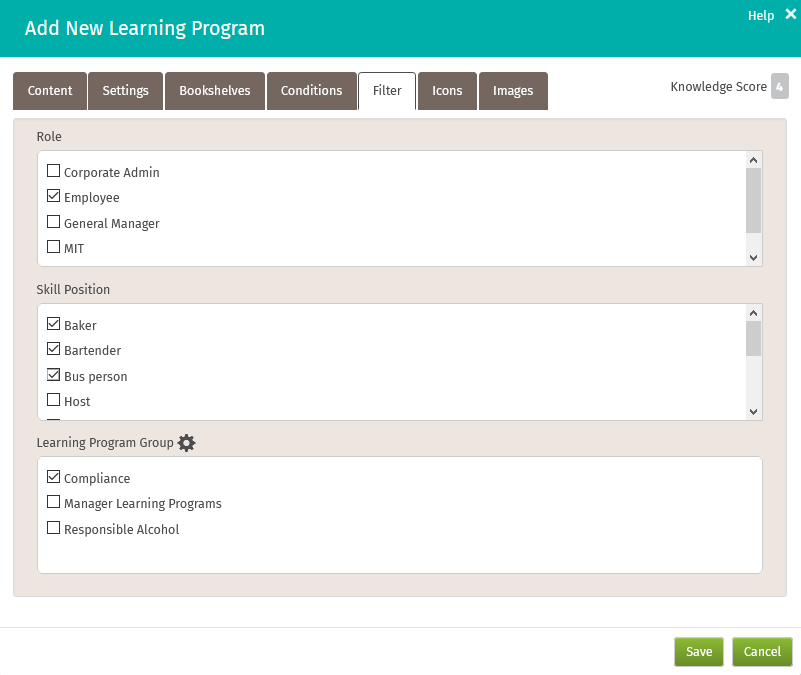
The Filter tab lets you create tags for your learning program that will allow you to customize your dashboard and manage content views. Filters are only about filtering your dashboard and manage content views, they do not impact assignments.
- Role: Check the roles you want this learning program to be associated with
- Skill Position: Check the skill positions you want this learning program associated with
- Learning Program Groups: Check the learning program groups you want this learning program associated with
Related Topics
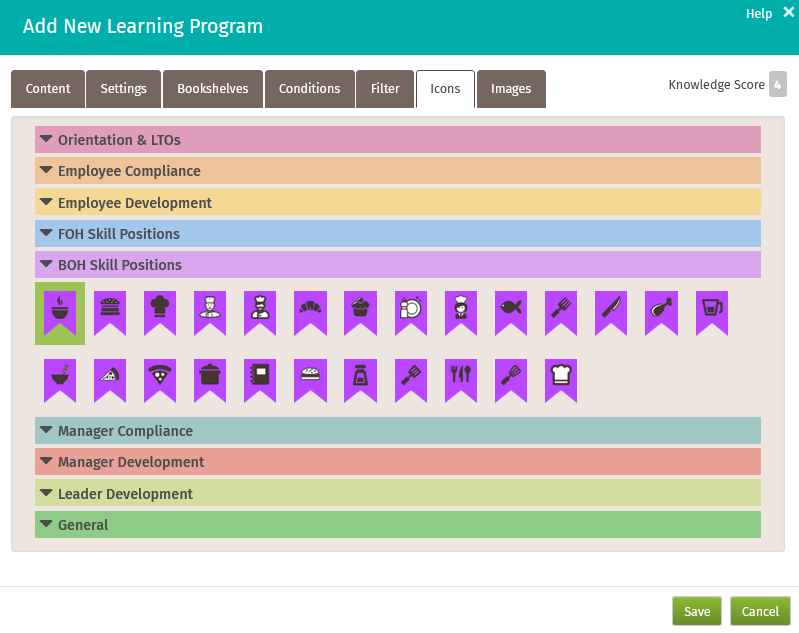
Icons Tab
Icons and their corresponding color will represent your learning program on the My Training page, dashboard, and trophy case.
- Expand each category to view included icons
- Click an icon to attach it to your new learning program
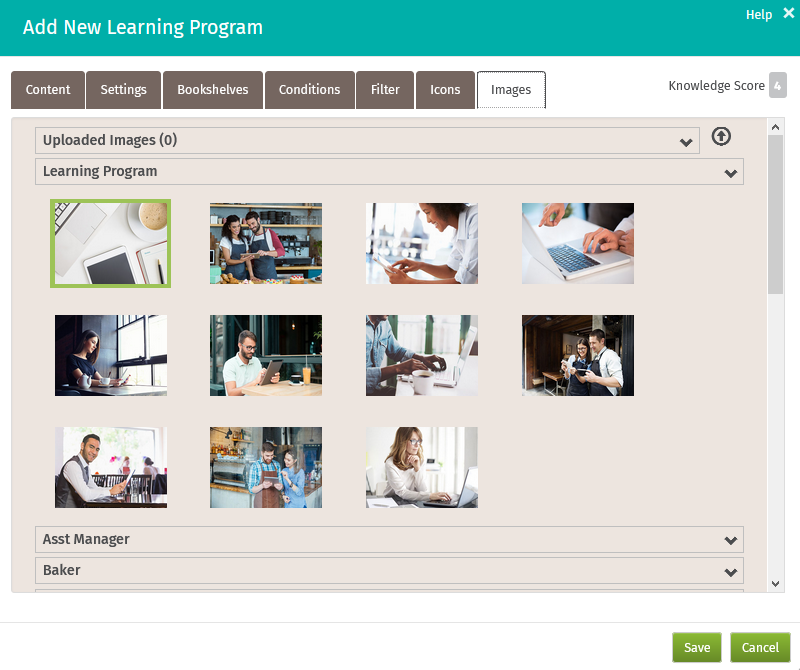
Images Tab
Images will represent your learning program on the My Training page in tile view.
- Expand each category to view included images
- Optionally upload your own images
- Click an image to attach it to your new learning program
Remember to Save before closing the screen!
Delete a learning program
Path: Campus Home > Content > Manage Content
- Click the name of the learning program (across the top) to display the add/edit learning/program panel
- Click Delete in the Program Status box
- Save
Comments
0 comments
Please sign in to leave a comment.