| The Configure tab in the Form Builder contains various settings that control how your form behaves, who can edit it, and how submissions are handled. This article covers all available configuration options and how to use them effectively. |
🔍 Navigate this article: |
Configure Tab Overview
|
To access the Configure tab, edit any existing form or create a new form, then click on the Configure tab in the Form Builder.
|
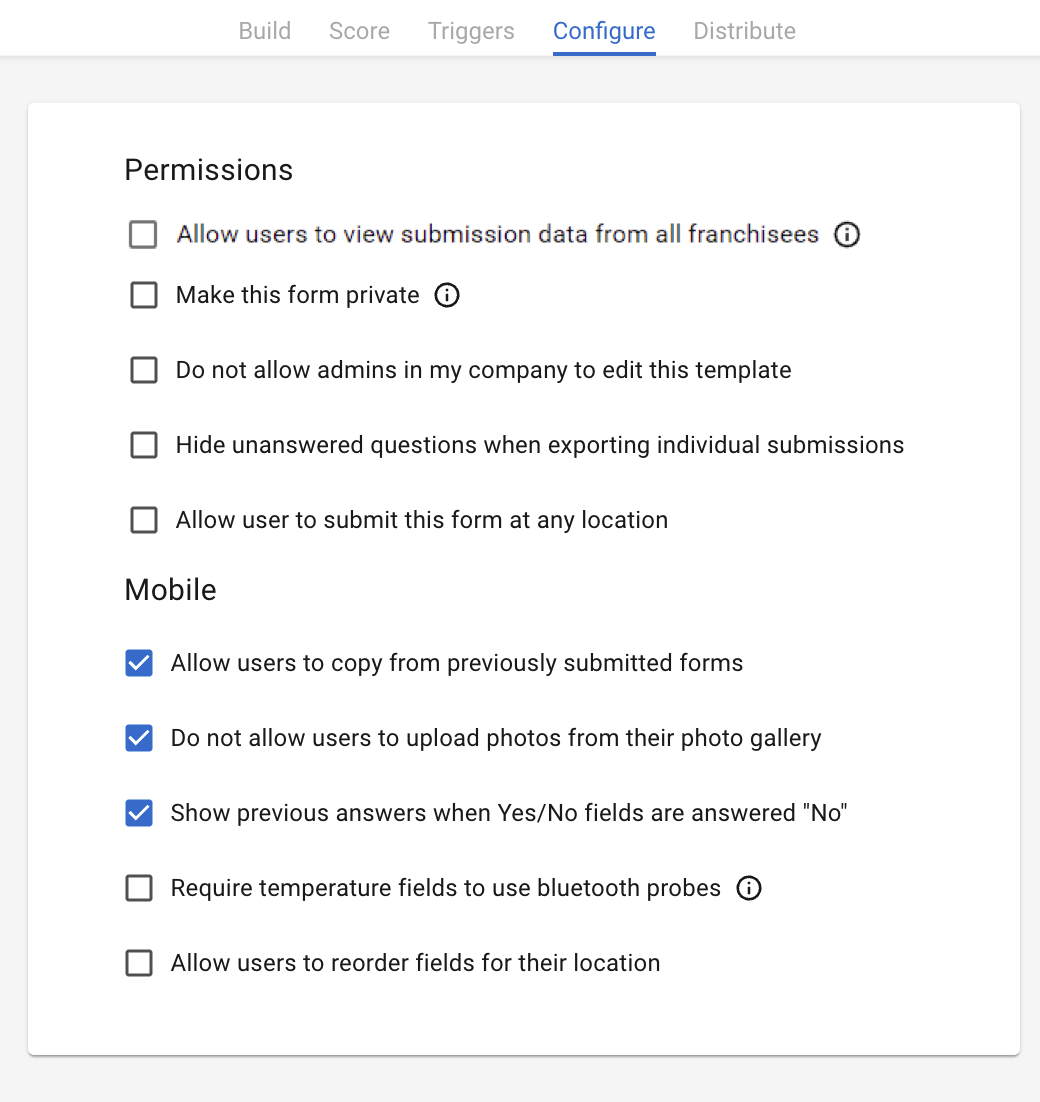 |
Allow Users to view submission data from all franchisees (Corporate/Franchisee Feature)
This setting allows Franchisor admins to control which form templates they receive Franchisee submission data for, rather than the previous "all or nothing" approach.
Once enabled for a form template, Franchisors can navigate to a submissions list and gallery view to see and interact with Franchisee data. This gives Franchisors control over what they want or don't want to see.
To view submission data for all Franchisees, see: How To: Access Brand Wide Submissions List View and Export
Make this Form Private (Special Feature)
Private forms are a secure way to collect sensitive data from the Ops Execution mobile application. This is an upgrade to your normal Ops Execution service.
If you would like to enable the private forms feature flag on your account, please contact your customer success manager for pricing information.
How to: Use and distribute a Private Form (Special Feature) (Admin)
Do not allow admins in my company to edit this template
When this option is checked, only the creator of the form will be able to edit it. Any other admins will receive an error message and will not be able to make changes. When unchecked, any admin in the account can edit the form.
Hide unanswered questions when exporting individual submissions
When checked, the emailed form submission and the PDF export will omit any unanswered questions. The exception is checkbox questions — a checkbox question can never be unanswered (it is either checked or unchecked), so it will appear on all exports.
This is helpful if you are creating a form where you would like the option to have many fields for answers, but do not necessarily want the reports to reflect all the fields in the submission that was not applicable for the specific location.
Show previous answers when Yes/No fields are answered "No"
When enabled, if a submitter answers a Yes/No question with "No", the past 5 submissions for that answer will be displayed in the form of check marks and X's. This helps identify patterns and recurring issues.
Allow user to submit this form at any location
When this option is not selected, Managers and Submitters can only select a Location on their Team within the Hierarchy. When it is selected, there are no restrictions from the Hierarchy, and any Location can be selected when filling a form.
Allow all Ops Execution Brands locations to be selected when submitting forms
This allows someone from the corporate company to pick reporting company locations in a form in order to complete occasional audits.
Allow users to copy from previously submitted forms
| When a form is being filled out, if the selected Location has a previous submission for that Form Template, the submitter will see a prompt to prefill with data from the last submission. If "Yes" is selected, all the answers from the last submission will be loaded onto the current form. |
Do not allow users to upload photos from their photo gallery
When this is not selected, the submitter will be asked to choose either the Camera or Gallery when adding a photo. When it is selected, there is no Gallery option — the submitter is taken straight to the camera with no options presented.
Require temperature fields to use Bluetooth probes
This relates to Temperature fields only. When unchecked, a user can EITHER enter a number manually or use a Bluetooth thermometer. When checked, an entry can ONLY be made with a Bluetooth thermometer.
Please Note: When choosing this option if the Bluetooth probe is not working or operating properly, the submitters will not be able to submit the form. We suggest having another backup probe to capture the temperature if this occurs.
Allow users to reorder fields for their location
With custom question ordering, you can configure a form template to allow submitters to rearrange the question order for forms at their location.
Example use case: Each of your stores performs a temperature check of ingredients on the makeline, but some stores arrange their ingredients in a different order. With custom question ordering, a submitter can change the order of questions on their temp check form and the new order will be saved for that location moving forward. Because they don't need to jump around within a form, employees will be able to fill out their forms more efficiently.
For submitter instructions on reordering questions, see: How to: Reorder Questions on a Form (Submitter)
Current Limitations of Custom Ordering:
- Fields cannot be moved into or out of a section (they can only be rearranged within the section)
- Companies cannot add or delete fields from the form template
- PDF generation does not reflect custom ordering
- No option to reset the form back to its original order (for submitters)
- Bulk reordering is not available
- Questions cannot be reordered while offline
- Custom ordering is unavailable in Brand-wide forms
Comments
0 comments
Please sign in to leave a comment.