| Formulas in Ops Execution allow you to calculate scores based on how questions are answered. Whether you need simple addition, percentage calculations, or complex equations for inventory counts, Formula Builder gives you the flexibility to create the scoring system your forms need. This article covers basic formula types, min/max boundaries, and advanced formula configurations. |
🔍 Navigate this article: |
Getting Started with Formula Builder
A formula gives a score based on how questions in the form are answered. Formulas can be calculated using SUM (addition), SUB (subtraction), AVG (average), PCT (percentage), or Advanced formulas for complex equations. When setting up a formula, you select how you would like to calculate the score and choose which questions to include in the calculation.
|
|
|
|
|
|
| |
| Once configured, test your formula by clicking 'Preview Form' to verify it works correctly. If edits are needed, return to the 'Score' tab and click the pencil icon in the top right-hand corner of the formula box. Always click 'Publish' to save your changes. |
Basic Formula Types
Ops Execution offers four basic formula calculation types. For multiple-choice and yes/no questions, you'll assign point values to each answer option.
Sum
Adds up all points from the questions answered. The option to attribute points to "No" answers is available if you want negative answers to count for fewer (or zero) points.
Subtract
Subtracts points based on answers. The subtraction takes the topmost question's answered score and subtracts the points from subsequent questions answered.
Average
Calculates the average points of all questions answered out of the total possible. For example, if a formula contains 4 yes/no questions worth 10 points each when answered "yes," and the submission contains 3 yes answers and 1 no, the formula total would be 7.5.
To see only the average for questions actually answered, select "Do not include unanswered questions in calculation."
Percentage
Returns a percentage (decimal amount) of points earned against total points possible for all questions in the formula. For example, in a formula with 100 total points possible, if the submission earned 80 points, the formula total would be 80%.
You can also use negative values in question answer values to subtract from the total.
Formula Min/Max Settings
The Formula Min/Max feature allows administrators to set minimum and maximum values for formulas, ensuring scores remain within defined boundaries. Values can be adjusted using the up and down arrows.
Example: Formula with Min and Max Set
|
Configuration:
|
Outcomes:
- If the user answers Yes to both questions, the calculated score would be 10 (5 + 5). However, since Maximum is set to 8, the score is capped at 8.
- If the user answers No to both questions, the calculated score would be -10 (-5 + -5). With Minimum set to -2, the score is adjusted to -2.
Removing Min/Max Values
| If you remove either the Minimum or Maximum value, the system will no longer enforce a boundary for that side of the range. Without a Maximum, scores can exceed the previously set limit; without a Minimum, scores can drop below the previously set floor. |
Benefits of Using Formula Min/Max:
- Enhanced Accuracy: Ensures scores stay within a meaningful range
- Customizable Scenarios: Adapt to different use cases with flexible settings
- Prevents Extremes: Avoids scores that are too high or too low, ensuring balanced outcomes
Advanced Formulas
Advanced formulas can perform complex equations beyond basic calculations. Each question field has a unique Question number (Qxx) that you use in the formula to represent that question's value.
Available Operators
- Addition: +
- Subtraction: -
- Multiplication: *
- Division: /
- Parentheses: () — Use to adjust order of operations. Calculations within parentheses are performed first.
Setting Up an Advanced Formula
| |
| |
|
 |
|
 |

Practical Examples
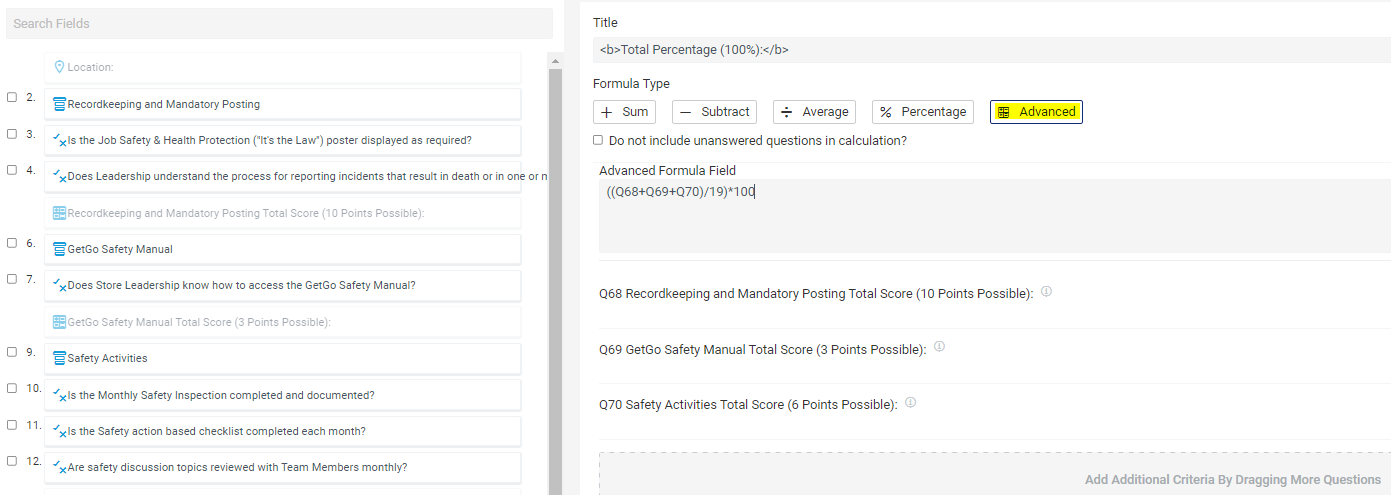
Total Percentage Calculation
To calculate a total percentage score from multiple formula sections:
- Create individual formulas to calculate each section's score
- Create an Advanced Formula that combines all scores
- Use parentheses to group the addition of all formulas, divide by the total possible points, then multiply by 100
Example formula: ((Q68 + Q69 + Q70) / 19) * 100
This adds all formula totals, divides by total possible points (19), and multiplies by 100 for the percentage.
Register/Safe Count Calculation
Advanced formulas are commonly used for Safe Counts, Till Counts, and inventory calculations.
| |
|
|
|
|
|
|
Need a more advanced formula? If you need a more complex formula to arrive at your desired calculation, please reach out to your Customer Success Manager or our support team.
Comments
0 comments
Please sign in to leave a comment.