Note: You need to have owner or admin permission to accomplish the following steps
| The Triggers tab in Form Builder gives you powerful automation capabilities. You can create conditional triggers that assign tasks or send alerts based on specific form answers, and configure who receives copies of form submissions via email. This article covers both creating conditional triggers and managing submission distribution settings. |
🔍 Navigate this article: |
Create conditional triggers
Conditional triggers allow you to automatically assign tasks or send alerts when specific conditions are met in a form submission. For example, you can assign a maintenance task when equipment fails inspection or notify managers when critical issues are reported.
|
|
| |
|
|
|
|
| |
Example: You may want to automatically assign a task to the "Maintenance" role when the question "Lights are all working" is answered "No" and alert the district manager by selecting their role under Alerts. This ensures that the Maintenance user receives a task to resolve the lighting issue, while the District Manager is notified to follow up.
Trigger automatic submission routing
In Ops Execution, you have the ability to send a copy of all form submissions to additional people. This could mean other people within your organization, vendors, or really anyone with an email address.
|
|
| |
| |
| |
| |
Important notes about submission distribution
| For PDF downloads: Recipients can click the "View PDF" text at the top of the submission copy to download the submission as a PDF. | 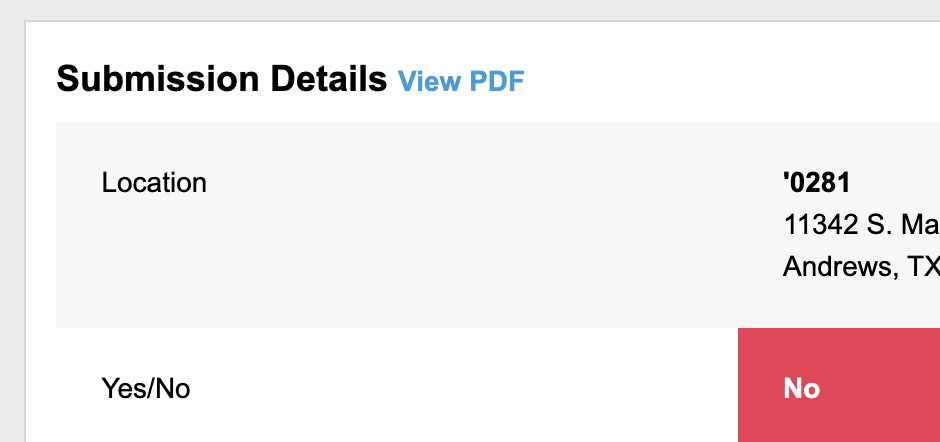 |
Notification settings required: If sending to an existing Ops Execution user or role, the recipient must have their alert notification settings set to either "Email" or "Email & Push Notifications" in order to receive the submission email.
Comments
0 comments
Please sign in to leave a comment.