|
Private forms are a secure way to collect sensitive data from the Ops Execution mobile application. Using this feature, you can collect sensitive data and control who has the ability to view form submissions. When enabled, Ops Execution users can submit a form that no one in the account (except the form creator) will be able to view unless explicitly given permission. The form creator can grant access to specific users, roles, or teams on a user-by-user or hierarchy-dependent basis from the distribution settings. |
🔍 Navigate this article: |
Enable Private Forms
Before you can make forms private, the Private Forms feature flag must be enabled on your account. Contact your Customer Success Manager to have this feature activated.
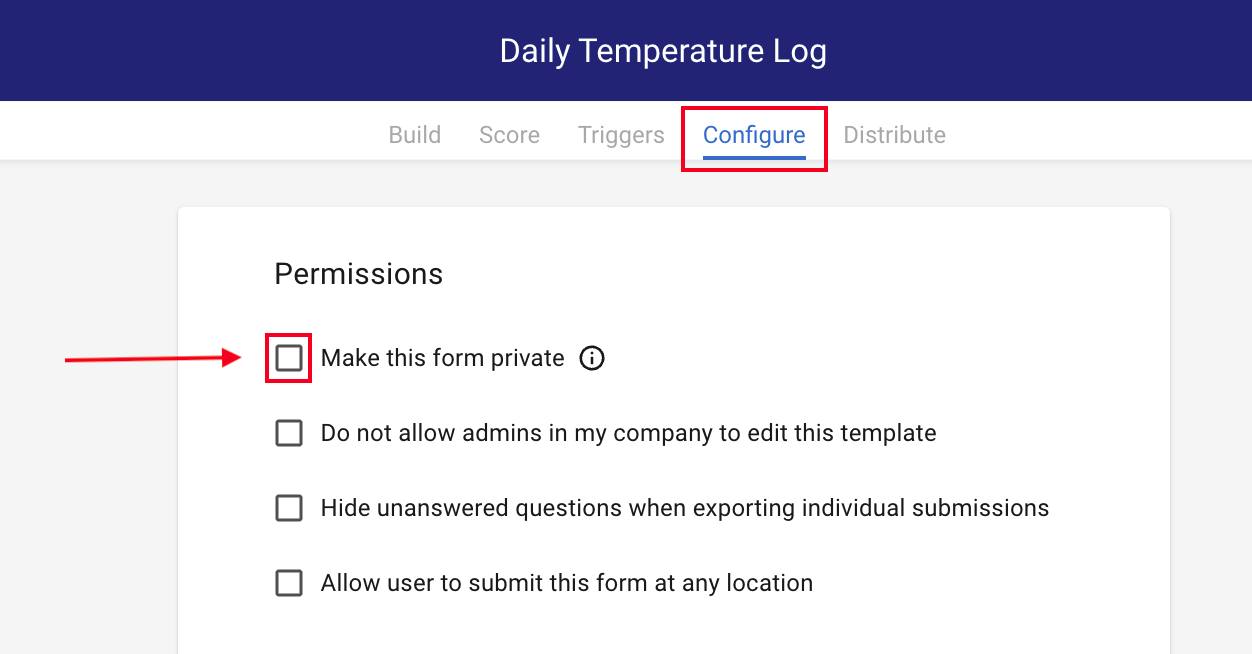
Make a form private
| |
|
|
|
 |
|
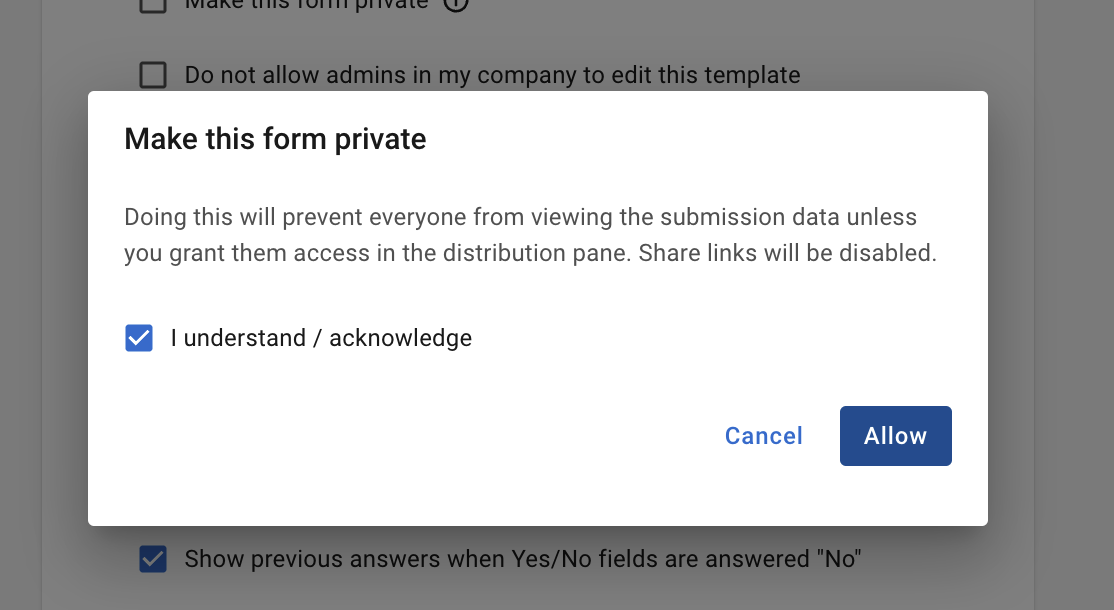 |
Now that your form is private, you'll need to distribute it and ensure the right people have access to the data.
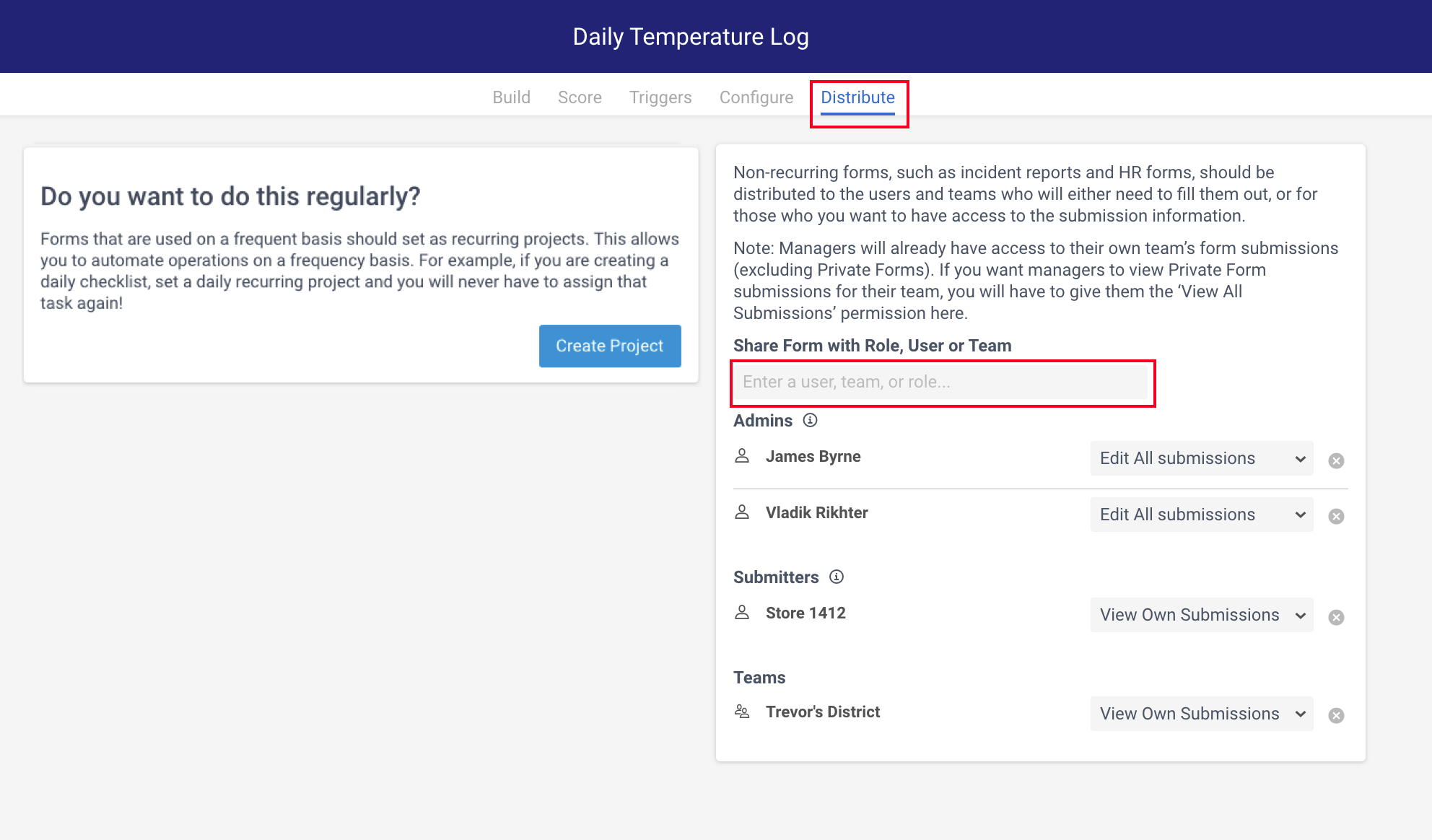
Distribute & restrict access to Private Forms
|
 |
| |
How permissions work in practice:
- Managers will only be able to view form submissions from stores they oversee in the hierarchy set up in Ops Execution.
- Submitters will have access to the form from the 'My Forms' section of their mobile applications. However, once submitted, they will not be able to view the submission unless granted viewing permissions.
- Other Admins must be added to the distribution list with "Edit all Submissions" access to view the form or its data.
Important Notes:
- When you have a private form, you CANNOT have an attribute and allow for the form to be submitted from any location. It must be one or the other - otherwise locations will NOT be able to select the location when filling out the form.
- Reporting is available for Private forms as long as the correct permissions are set up (i.e., View all Submissions). However, you cannot save the report to go out on a recurring basis.
- Submissions (List View) will appear after the distribution update is made; any submissions thereafter will be visible.
Comments
0 comments
Please sign in to leave a comment.