Note: You need to have owner or admin permission to accomplish the following steps
Sharing forms from managing companies to reporting companies can be done 2 ways – by distributing the form Brand-wide, or adding it to the Brand Hub.
Brand Hub enables you to copy form templates between companies and share forms from managing companies to reporting companies. After a form is copied from the Brand Hub, it becomes a separate entity owned by the company that copied it and will no longer receive updates from the origin company.
Sharing forms via the Distribute tab allows all users with the shared role to complete forms on an ad-hoc basis from 'My Forms'. The changes done to the brand-distributed form will also update for all the users/companies the form is distributed to
Tip: When a form is copied from Brand Hub, "Copy of" is automatically added to the beginning of its name. You can remove this prefix in the form editor after copying.
Click on the form you would like to add to your account
Click on 'Add to My Account' at the top right-hand corner
You will be directed to the form editor where you can make edits like removing 'Copy of' from the form name
Click on 'Back to Forms', and you will be able to search for the form you just added from the Brand Hub
Troubleshooting: If you experience a blue screen when trying to view the form, please perform a hard-refresh of your browser.
Share forms with brand companies
Distributing forms from managing companies to reporting companies allows all users with the shared role to complete the form on an ad-hoc basis from 'My Forms'. The sharing process has been streamlined to provide visual confirmation at each step.
Before sharing: You'll see visual confirmation that the form is shared at a 'Company Level'
After sharing: You'll have confirmation the form is being shared on a 'Brand Level' across all reporting companies
Add a new form to your Brand Hub
You cannot add new forms to your Brand Hub even if you have owner or admin permissions. If you need to add a new form to your Brand Hub, contact your Customer Success Manager (CSM) for assistance.
Locate the form in the Forms section of Ops Execution, then click the three dots on the right-hand side to open the drop-down menu, and select "Reporting Company Submissions"
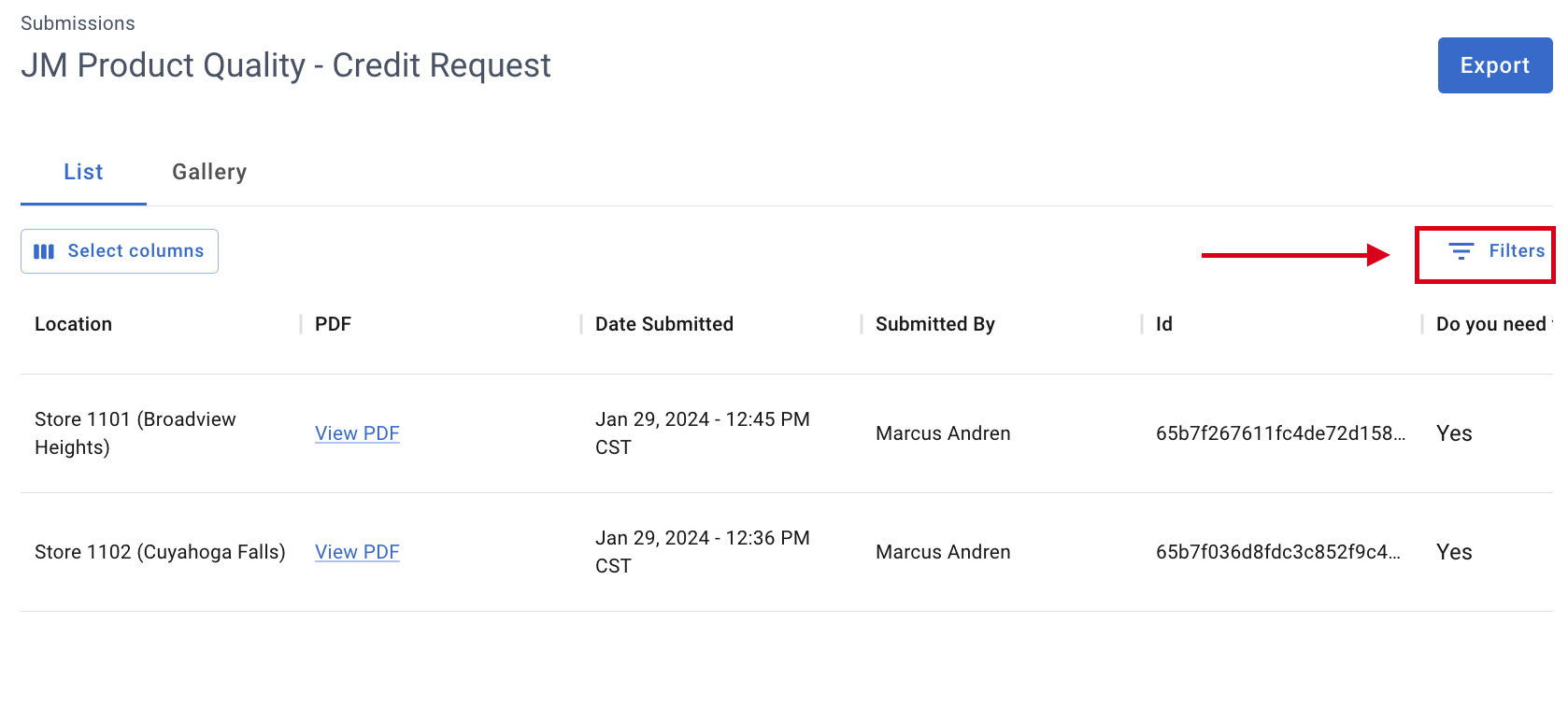
You will be directed to the 'Submissions: Brand Submissions' page where you can view submissions in List or Gallery view. To view a PDF version of the submission, click the 'View PDF' button
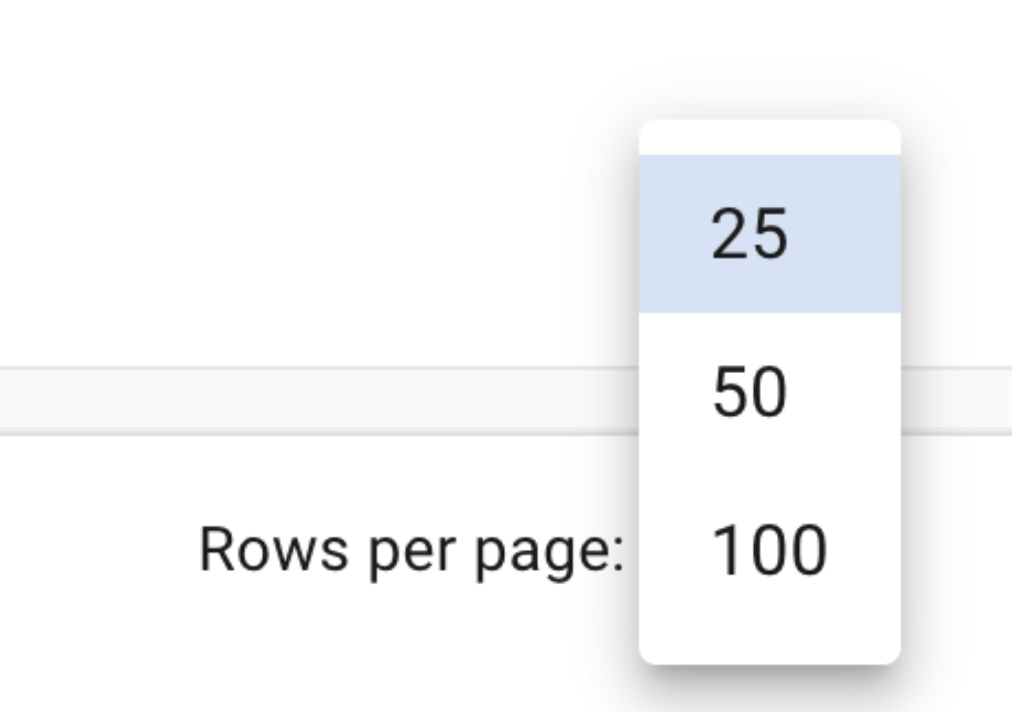
Tip: You can use the data grid element to select how many rows are shown on your screen at once (25, 50, or 100 rows)
Customize columns and filters
Similar to Ops Execution's Reports view, you can hide and show columns depending on your needs by selecting the 'Select Columns' button
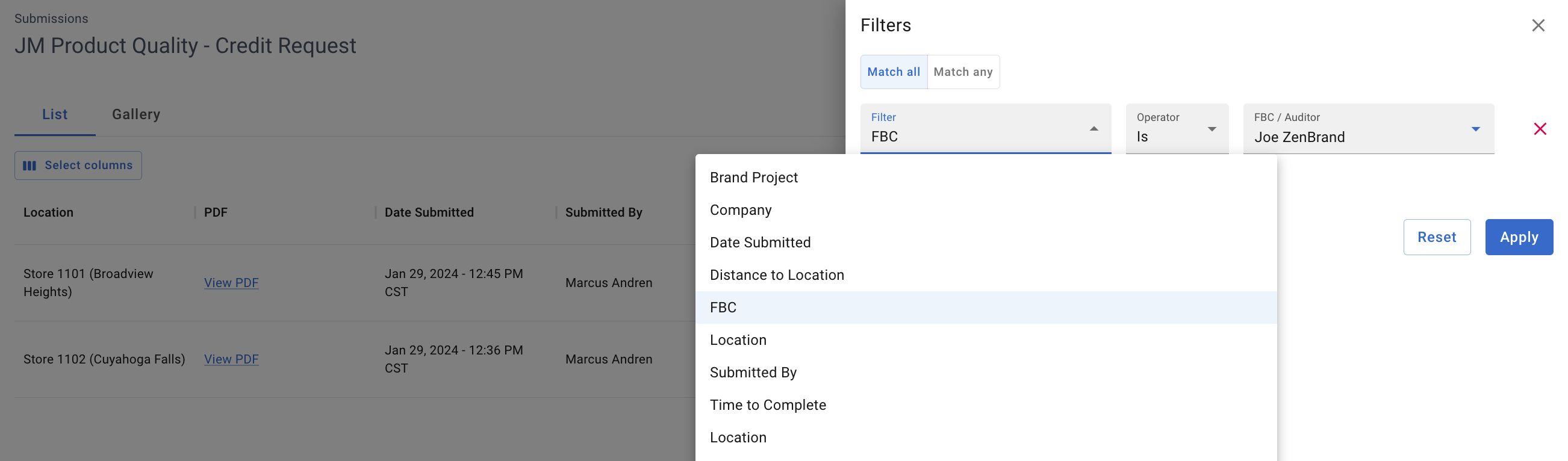
You can filter submissions by different criteria, including the Submitted By and FBC criteria. FBCs can filter to only see submissions of locations they are associated with. To filter submissions, click the Filter button at the top right side
To export all data, click the Export button located at the top right of the screen. Submissions will be sent to you via email
Available columns include: Location, Project, Company, Date submitted, Photo Question, Date Question, Checkbox Question, Email Question, Formula Question, Yes/No Question, Text Question, Number Question, Equipment Temp Question, Ingredient Temp Question, Video Question, Signature Question, Barcode Question, Temperature Question, Stopwatch Question, Multiple Choice Question, Distance from Location, Time to Complete
Comments
0 comments
Please sign in to leave a comment.