| Attributes are powerful tools in Ops Execution that help you segment and organize your locations to drive and assign work effectively. There are three types of attributes: General Attributes (for unique characteristics like drive-thru or patio), Geographic Attributes (for location categorization like regions or states), and Calendar Event Attributes (for operational schedules like store hours). This comprehensive guide covers how to create, manage, and use all types of attributes across forms, projects, and announcements. |
🔍 Navigate this article: |
Understanding the Three Types of Attributes
Ops Execution offers three distinct types of attributes to help you organize and manage your locations effectively:
General Attributes
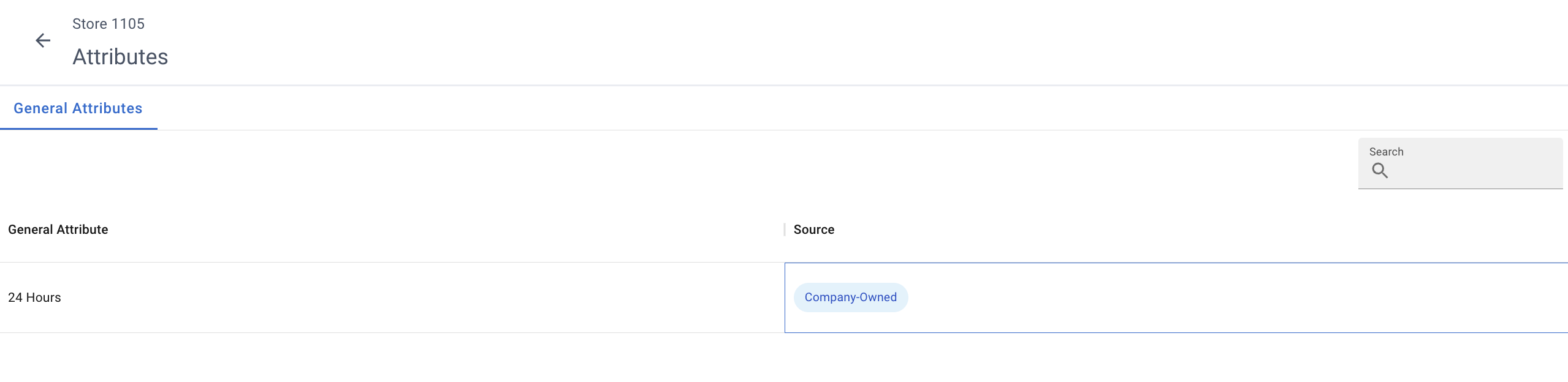
General Attributes help you drive and assign work to your teams by segmenting form sections, projects, and/or announcements based on your location's unique characteristics such as drive-thru, patio, kiosk, delivery-only, and more.
Geographic Attributes
Geographic Attributes include organizational hierarchies such as State or Province, Country, Region, or Company Name. These attributes help you categorize locations geographically while assigning specific form sections, projects, and/or announcements (e.g., Northwest, Vancouver, Midwest, Northeast).
Calendar Event Attributes
Calendar Event Attributes allow you to create projects that automatically repeat tasks based on operational schedules, such as performing specific actions every hour while a store is open. These operate through three interconnected components:
- Calendar Event Type: Represents a business event occurring at a specific time (e.g., store opening/closing hours, delivery days, employee shifts)
- Calendar Event: Specifies when an Event Type occurs for a particular location on a weekly basis (e.g., "Store 123 opens at 9 AM on Mondays")
- Calendar Day Event: Defines when a certain Event Type occurs for an entire day in a weekly schedule (e.g., "Store 789 is open for deliveries every Wednesday")
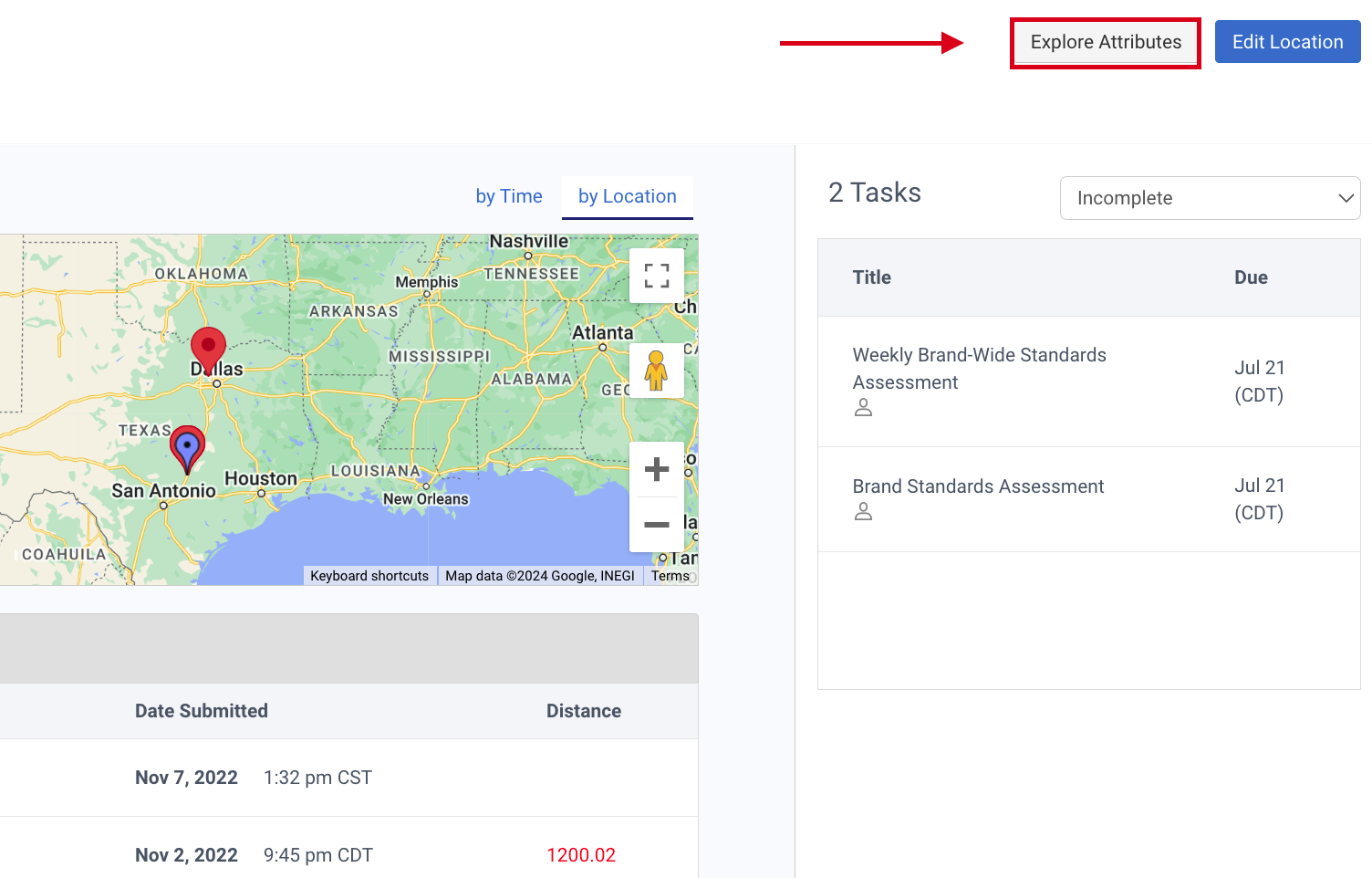
Exploring Attributes for a Location
|
|
|
 |
| |
Tip: You can use the data grid element to select how many rows are shown on your screen at once (25, 50 or 100 rows)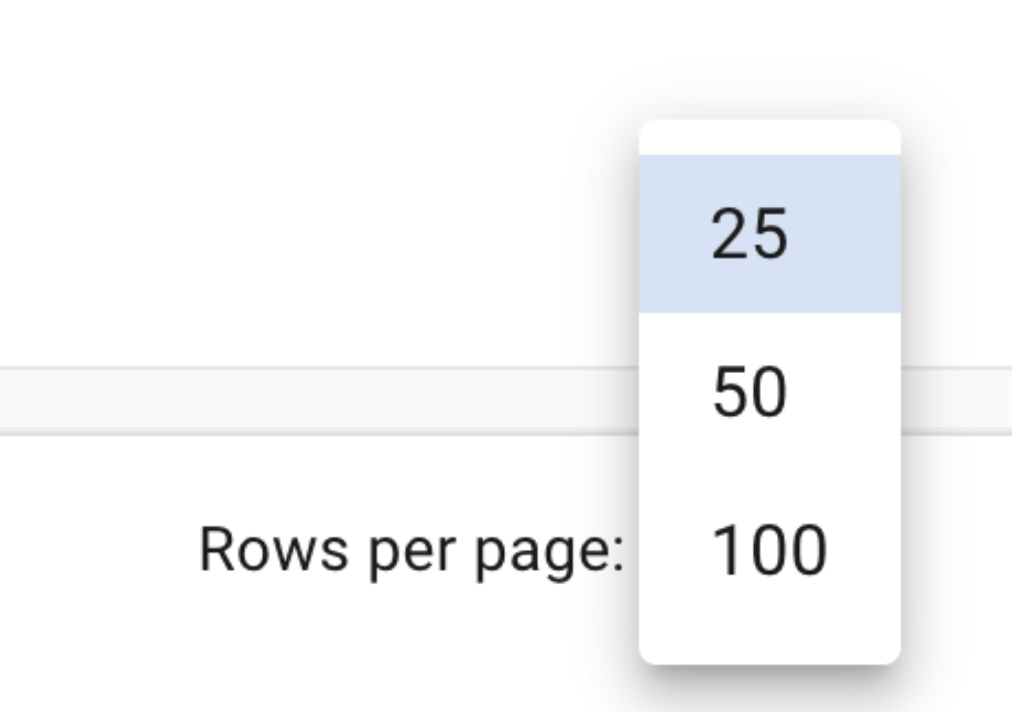
Managing General Attributes
Creating New General Attributes
|
|
|
Adding Existing Attributes to Locations
|
Removing Attributes from Specific Locations
Important: If you remove an attribute from a specific location, it will take up to 48 hours for any attribute-driven daily projects to catch up.
|
Deleting Attributes Entirely
Warning: If you remove an attribute entirely, this will break any forms set up with attribute-driven visibility, as well as any attribute-driven projects.
We highly recommend ending the project first, otherwise it will become uneditable.
|
|
Note: This action is permanent and cannot be undone. |
Editing Attributes
|
|
Managing Geographic Attributes
Geographic Attributes help you organize locations by geographical and organizational hierarchies. These can be managed through location editing or bulk imports.
Adding Regions to Existing Locations
To add geographic attributes like Regions to your existing locations, you can edit individual locations or perform bulk updates.
- For individual location edits, see how to Edit location
- For bulk edits, see: How to: Prepare Imports for bulk edits/additions to Hierarchy
Using Geographic Attributes in Reporting
You can make use of geographic attributes in reporting to segment and analyze data by region, state, or other geographic categories.
- For more information, see: Advanced Project Completion Report
Managing Calendar Event Attributes
Setting Up Calendar Events
Path: Locations → [Select Location] → Explore Attributes → Calendar Events
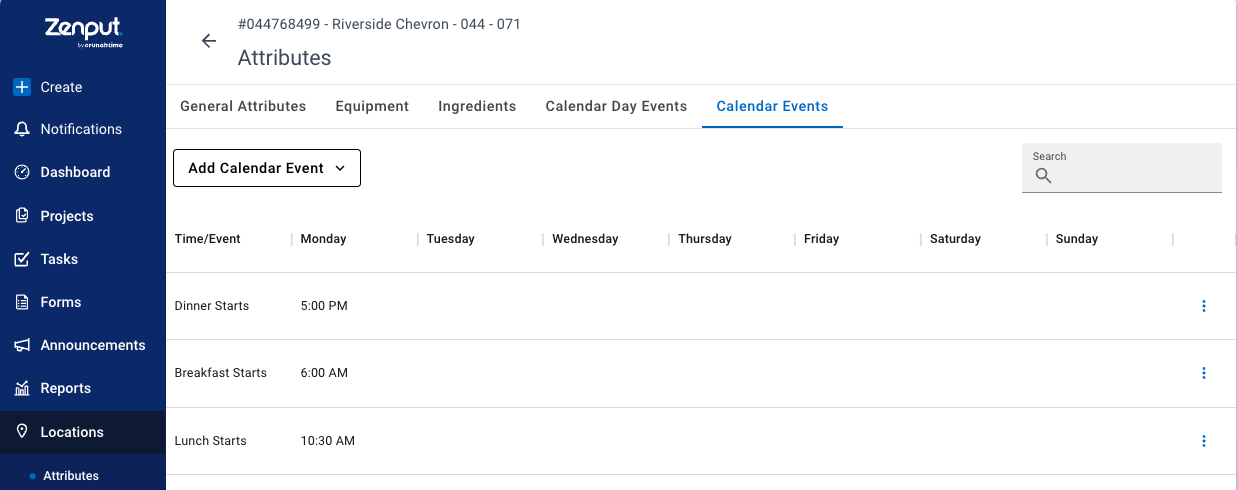
For more info, please refer to: Attributes: Calendar events
Please note: You can only apply Calendar events that have already been imported for your company. To create new Calendar event attributes, please reach out to your Customer Success Manager (CSM).
Using Attributes with Forms, Projects, and Announcements
Using Attributes with Forms
Attributes allow you to have one form for multiple different locations based on which sections or questions should be visible to each location.
|
Using Attributes with Projects
|
Using Attributes with Announcements
|
|
Comments
0 comments
Please sign in to leave a comment.