📅 How to Manage Calendar Event Attributes
| Calendar Event attributes provide a powerful way to manage your locations' operational schedules within Ops Execution. This system enables automatic task scheduling based on business events like store hours, delivery days, or employee shifts. Understanding the three key types of calendar events will help you effectively coordinate operations across your organization and ensure tasks are executed at the right times. |
🔍 Navigate this article: |
Understanding Key Concepts
Calendar events operate through three interconnected components that work together to manage your operational schedules:
1. Calendar Event Type
A location Calendar Event Type represents a business event occurring at a specific time, such as store opening/closing hours, delivery days, or employee shift start/end and so on.
2. Calendar Event
A location Calendar Event specifies when an Event Type occurs for a particular location on a weekly basis (e.g., "Store 123 opens at 9 AM on Mondays.", "Store 456 accepts deliveries every Wednesday."). This currently supports repeating events on a weekly schedule but does not yet handle specific calendar dates.
3. Calendar Day Event
A location Calendar Day Event defines when a certain Event Type occurs for an entire day in a weekly schedule (e.g., "Store 789 is open for deliveries every Wednesday."). These events apply across weekly cycles and are not yet configured for specific calendar dates.
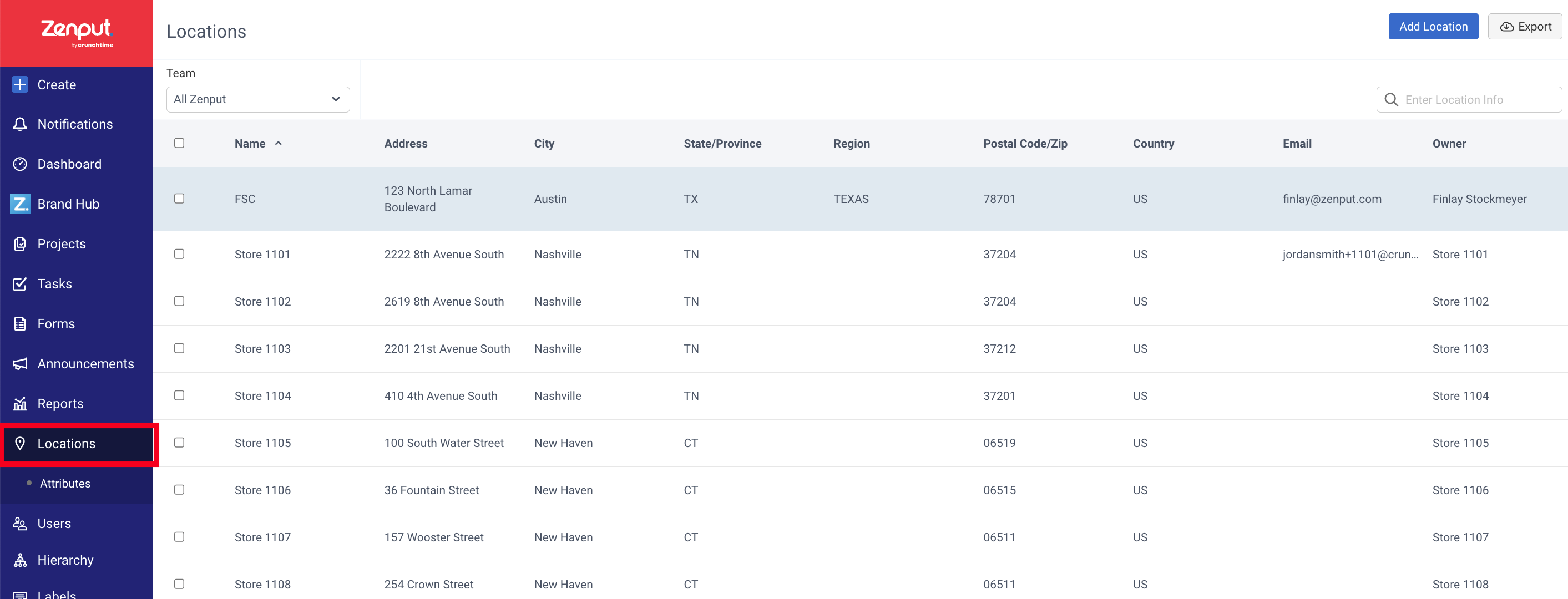
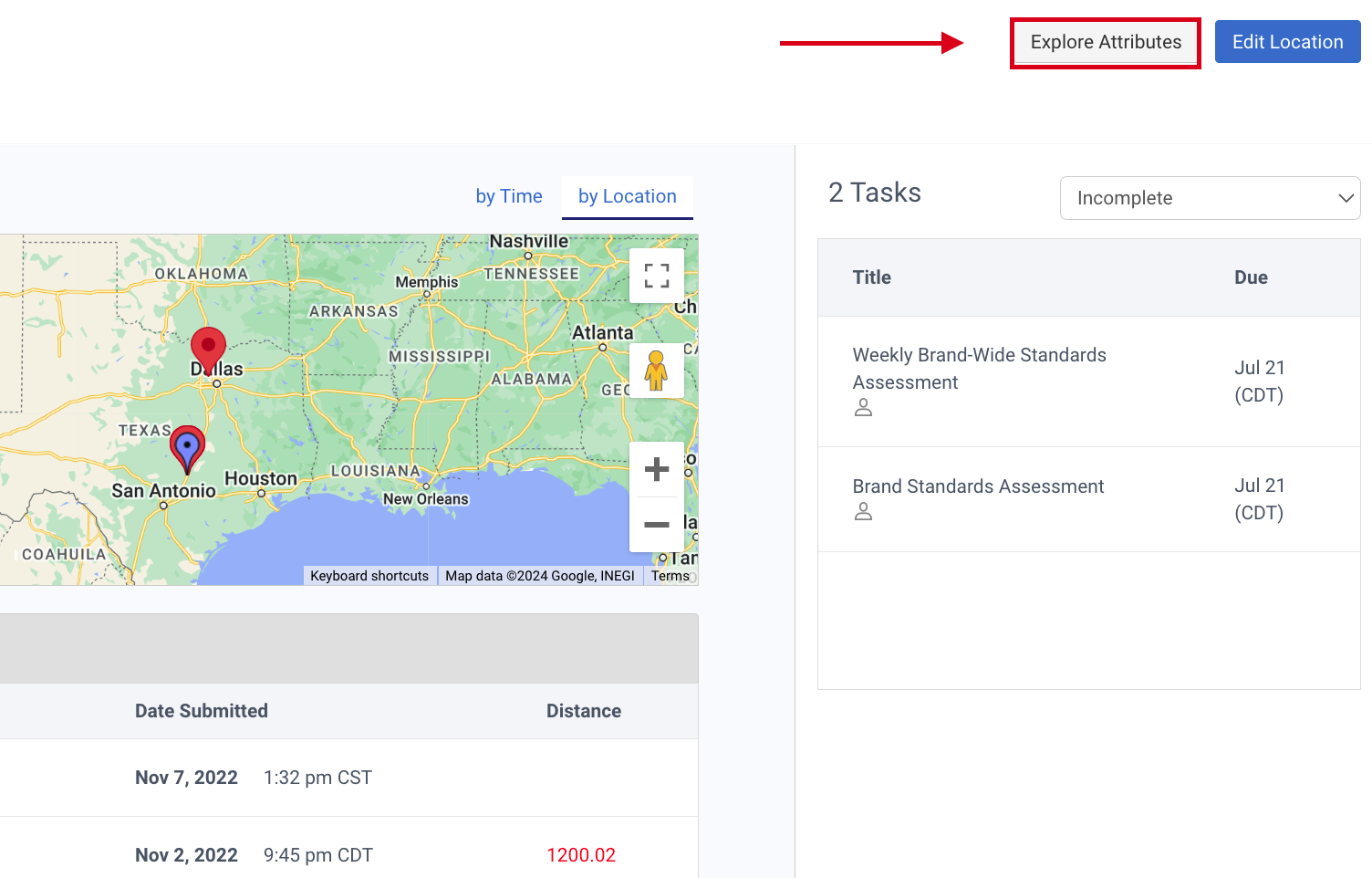
Setting Up Calendar Events
|
 |
|
 |
|
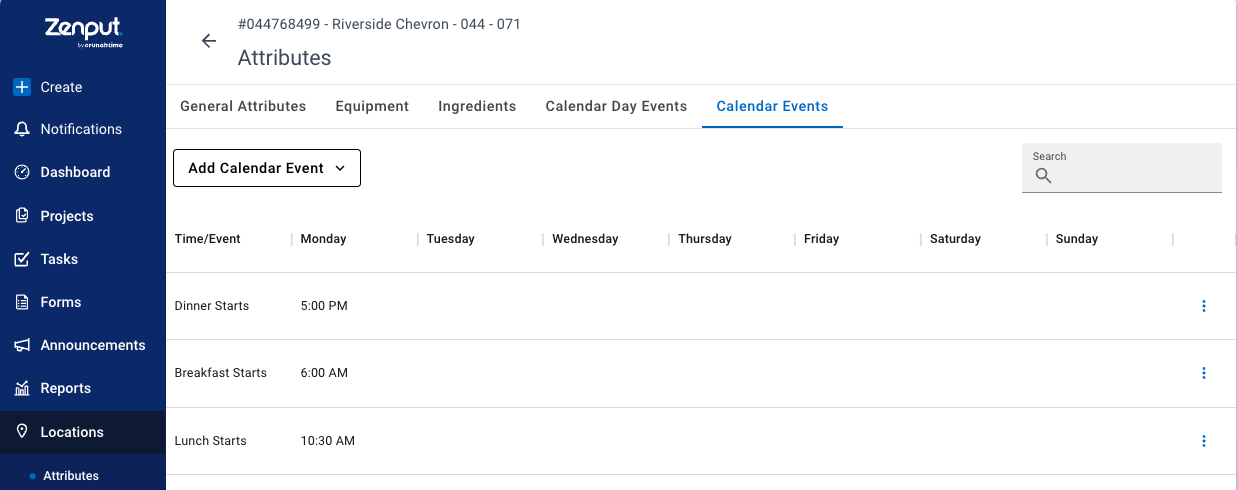 |
Please note: You can only apply Calendar events that have already been imported for your company. To create new Calendar event attributes, please reach out to your Customer Success Manager (CSM).
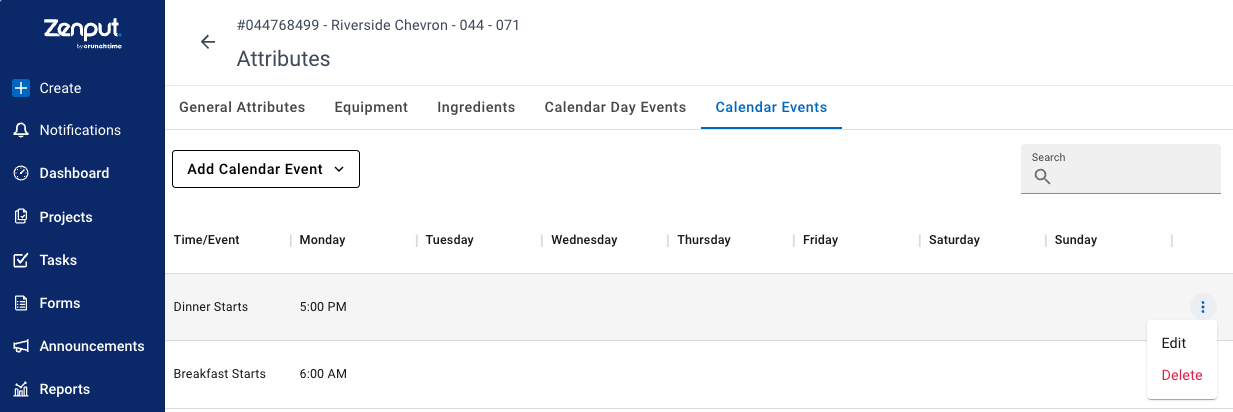
Editing Calendar Event Times for Specific Locations
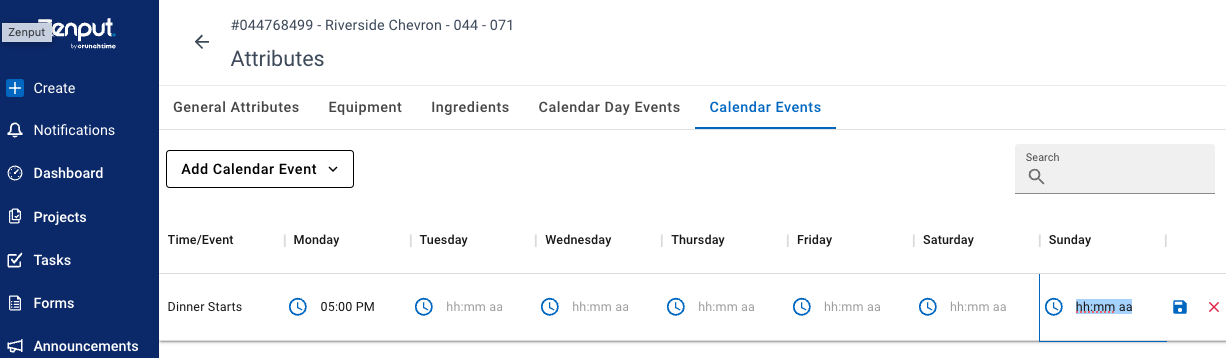
Sometimes, you might need to edit Calendar event times for specific locations. You can do that from the Locations tab by following these steps:
|
|
|
 |
|
 |
Setting Up Cross-Over Day Schedules
The event times are set as offsets from the start of the day, allowing flexibility in scheduling, even for events that cross over midnight or involve complex schedules.
| To set the schedule for cross-over days, you can select "Prior", "Same" or "Next" day when setting the calendar event time. | 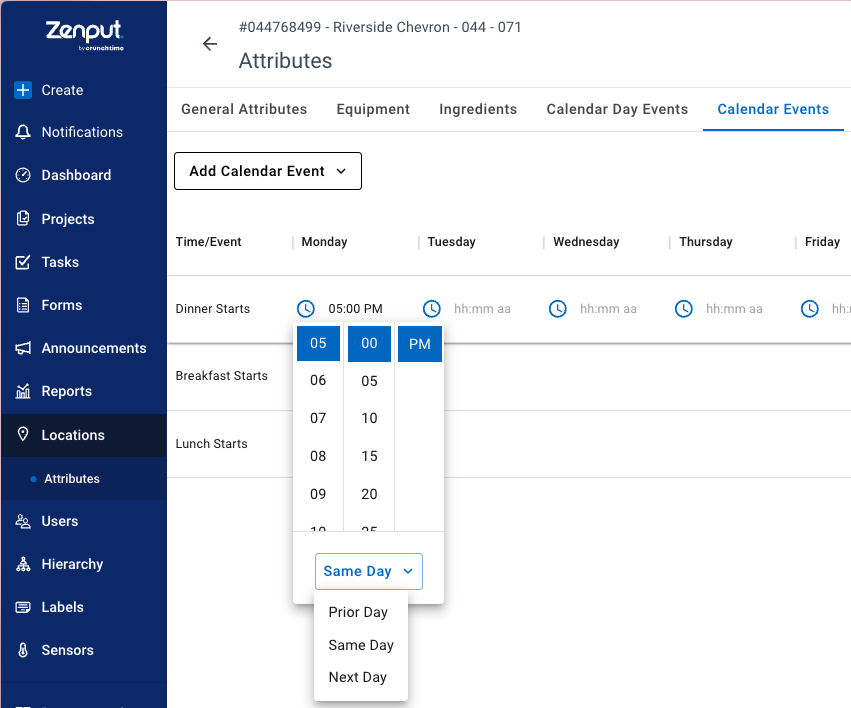 |
Examples of cross-over schedules:
-
24-hour store with a 5:30 AM cycle:
- Opening time: 5:30 AM
- Closing time: 5:30 AM the next day
-
Store with late closing:
- Opening time: 9:00 AM
- Closing time: 2:00 AM the next day
Once set, the cross-over schedules will appear with the +1 icon next to it: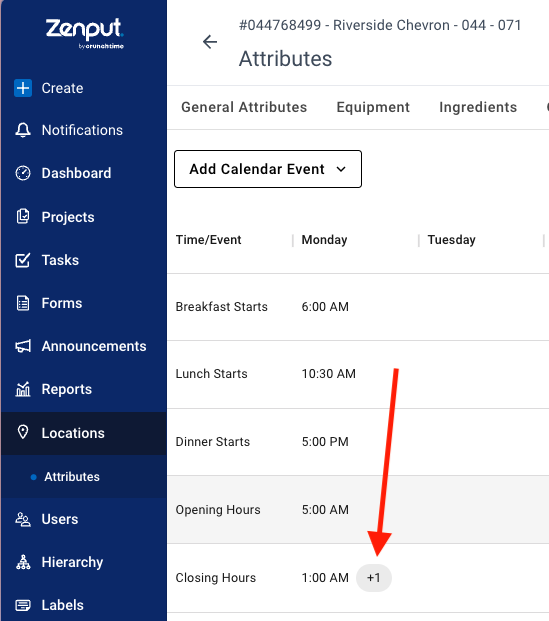
Using API for Calendar Management
Ops Execution provides three customer-facing API endpoints to help teams retrieve and manage operating hours and other calendar events programmatically:
| API Endpoint | Purpose & Functionality |
| Retrieve Company's Calendar Events | Retrieve all calendar events that are available across your entire company |
| Retrieve Location's Calendar Events | Retrieve all calendar events that are configured for a specific location |
| Update Location's Calendar Events | Update hours associated with calendar events for specific locations |
If a calendar event already exists at a location, you can use the update endpoint to adjust the time. This makes it much easier for teams with frequently changing hours to update calendar events automatically through the API instead of manually managing each change.
For detailed API documentation and implementation guides, visit the Ops Execution API docs.
Additional Resources
To check how to set up the Calendar event import, and start scheduling your projects based on Calendar events, please check our mini course below:
Show me how: To Schedule Projects Using Calendar Events.
More info: To find out more info on how to build projects based on Calendar events, please check this helpful article.
Comments
0 comments
Please sign in to leave a comment.