| Once you've created a form, you need to distribute it to your users so they can access and complete it. Distribution determines who can see and fill out the form from their "My Forms" section. This article covers all aspects of form distribution including permission levels, distribution methods, managing access, and troubleshooting. |
🔍 Navigate this article: |
Permission Levels
When you distribute a form to users and/or teams, you assign privilege levels that dictate what users can view and edit for that form.
|
Permission Options: View Own SubmissionsUser can only see their own form submissions (All Permission levels) View All SubmissionsUser can see their own and all other users' form submissions (Manager) Edit Own SubmissionsUser can view all form submissions and edit their own submissions (Manager) Edit All SubmissionsUser can view all form submissions and edit all form submissions (Manager, Admin)
Please note: "View all submissions" or "Edit all submissions" are still limited by the user's permission level (i.e. submitter, manager, admin). Managers can ONLY see their team's submissions. User/Role permissions will override any form permissions selected. |
Distribute/Remove a Form to Users/Teams
Distributing a form gives users access to fill it out at any time from the "My Forms" section of their Ops Execution mobile app. You can add or remove team/user access and adjust permission levels at any time from the Distribute tab.
|
|
| |
|
|
|
|
|
|
| |
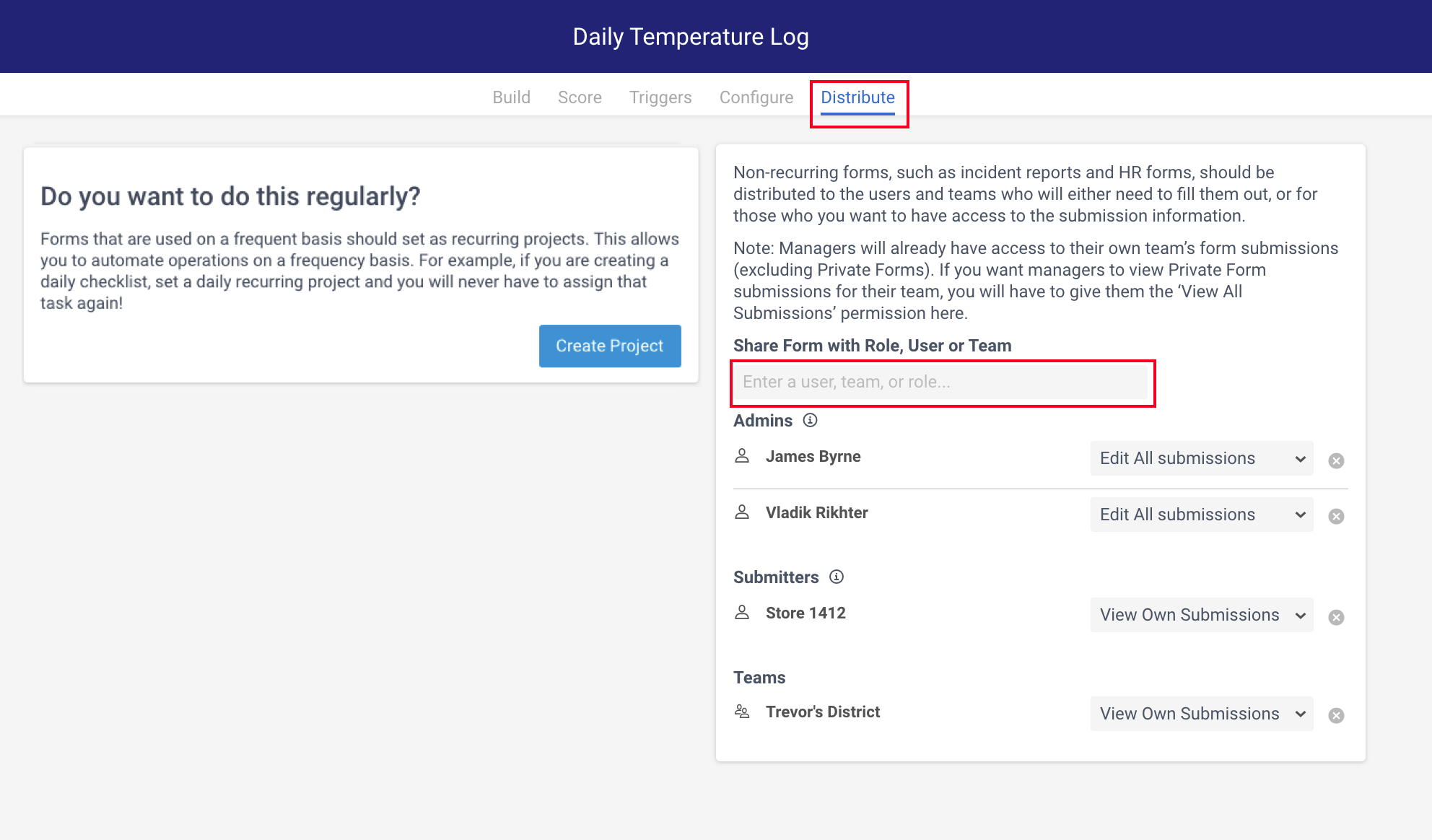
Please note: When a form is distributed to a child team, you must first remove any distribution that exists to a child team before being able to distribute to the parent team. An error message appears when trying to distribute to the parent team before removing any child teams.
Tip: If you want to assign a form as a project or task (available only once during a designated time), see: How do I create a task? or Creating a project in Ops Execution
Distribute Forms by Role
You can also distribute forms through the Hierarchy section by assigning them to specific roles. All users with that role will automatically receive access to the form.
|
|
| |
|
|
|
|
|
|
|
|
|
|
Troubleshooting: User Can't Find a Form
If a user contacts you because they can't find a form, here are some common causes and solutions:
1. Verify the Form is Shared with the User
|
Navigate to the 'Forms' tab, find the form title, and click the 'Distribute' button. This shows all users with access. If the user isn't listed, add them in the "Share form with" box. |
2. Check if the Form is Part of a Project
If your form is used in a project, it will appear on the left side of the Distribute screen. You can click 'Go To Project' or navigate to the Recurring Projects section on the Dashboard.
|
From the Projects view, you can see how many users are assigned. Click on any hyperlink (e.g., "3 to go") to see which specific users have the project assigned. | |
|
From the 'Tasks' tab, you can filter by project to verify if a specific user has access. |
3. Check Internet Access
If the user doesn't have internet access, they won't see newly distributed forms. To fix this:
- Ensure the user has an internet connection.
- Have them click on any form and wait for it to fully load.
- Click the back button in the top left corner to return to the form list.
This process refreshes the list and the missing form should appear.
Comments
0 comments
Please sign in to leave a comment.