Projects in Crunchtime Ops Execution keep track of task progress across multiple locations and team members. This guide explains how to set up, edit, monitor, and archive location-based and role-based projects.
What are Ops Execution project types?
Ops Execution uses two main project types to assign tasks to your team. Choose the type that fits your operational workflow before creating a project.
- Tasks per Location: Assigns tasks directly to specific locations. Users with the designated role at each location receive the task. This type works best for location-specific activities like opening checklists, inventory counts, and facility inspections.
-
Tasks per User via Roles: Assigns tasks directly to individual users based on their role, regardless of location. This type works best for team-level tasks like audits, training, maintenance, and cross-functional activities.
How do I set up projects in Ops Execution?
Creating a project involves defining task types, assigning roles or locations, setting up recurrence schedules, and configuring report delivery options.
Set up a standard project
- Go to Projects in the Ops Execution menu, then select Create Project
- Select your project scope (Brand or Company-wide) if Brand Manager is enabled. For more info on brand-wide projects - check this article.
- Choose either Task Per Location or Task Per User via Roles
- Select your task type (Form, Photo, or Basic Task), then enter a project title and instructions
- Select the target team and role assigned to complete the tasks
- Define your location scope if you selected Task Per Location (assign to all team locations, specific location names, or up to 5 location attributes)
- Select the frequency, start date, and due date for the project
- Choose your auto-archive preference
- Select daily snapshot report recipients under Reporting
- Review your settings in the Project Preview panel on the right, then select Save
Project recurrence options
- One-time (non-recurring): Generates a single occurrence. One-time projects cannot be edited after creation.
- Daily: Generates tasks daily. Set specific time windows by selecting Due, choosing Between, and entering start and end times. Create separate daily recurring projects or use Calendar events to assign multiple form tasks per day.
- Weekly: Repeats on specific selected days of the week.
- Monthly: Repeats on a specific calendar date or relative day (such as the first Monday or last Friday). If the start date is in the future, choose whether to launch an off-cycle task immediately.
-
Yearly: Repeats once per year on a designated date.
Understanding Auto-Archive settings
Auto-archive is enabled by default for all projects to prevent overdue task accumulation.
- When Auto-Archive is enabled: The project automatically moves to the archive once the due date passes. Tasks disappear from user task lists, but historical data remains accessible in the archive section.
- When Auto-Archive is disabled: Tasks remain open indefinitely past the due date until manually completed or archived. Uncompleted tasks accumulate over time.
Set up calendar events-based projects
Use Calendar events when tasks need to tie directly to operational events or store schedule changes.
- Enable Start and End Tasks by Event under the Recurrence section during project setup
- Select either Multiple Tasks Per Day or One Task Per Day
- Select your desired Calendar Events
- Configure tasks to trigger Before, At, or After the selected event
How do I manage active and archived projects?
Once created, you can track progress, modify schedules, archive finished projects, or restore accidentally archived items.
Track project progress
- Go to Projects to view all active open projects across your organization
- Select Done under the Progress section to view completed tasks and submission details
- Select To Go under the Progress section to view pending users and locations that require follow-up
Edit recurring projects
Only recurring projects can be edited. One-time projects cannot be updated once published.
- Go to Projects, then select the Recurring tab
- Hover over the right side of the project row, select the three dots menu, then select Edit
- Update any active fields including Title, Instructions, Locations, Start Date, Recurrence, Due Date, or Report Recipients
- Review your changes in the preview panel, then select Save
Archive projects
Archiving removes projects from active lists without deleting historical reporting data.
- Go to Projects, then select the Recurring tab
- Hover over the right side of the recurring project, select the three dots menu, then select Archive
- Confirm the action in the pop-up modal
- Go to the Projects tab and archive any remaining active child instances
View archived project data
- Go to Projects, then select the Status filter
- Change the filter from Active to Archived
- Select the three dots menu next to any archived task to export report data or delete the instance
Unarchive projects
Admins can restore archived single-instance projects to active status if archived by mistake.
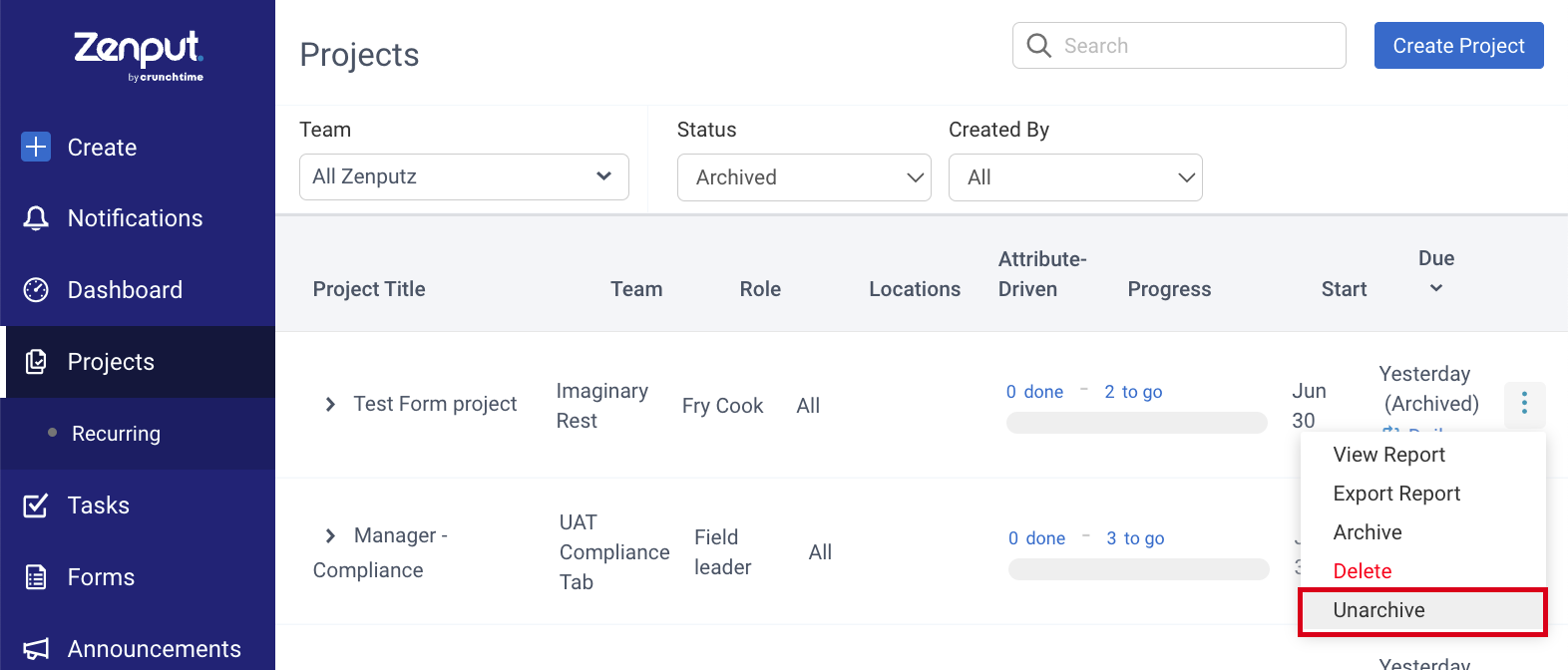
- Go to Projects, then change the Status filter to Archived
- Select the three dots menu next to the project instance
- Select Unarchive
Comments
0 comments
Please sign in to leave a comment.